09
DNS Troubleshooting: How to Fix Common DNS Problems
Learn how to troubleshoot common DNS problems, including websites that fail to load, DNS resolution errors, incorrect records, and slow DNS updates. Follow practical steps to identify the cause and check DNS records online.
When a website suddenly stops opening, DNS may be one of the reasons. You might see an error such as “DNS server not responding,” “DNS_PROBE_FINISHED_NXDOMAIN,” or “This site can't be reached.” Sometimes a website works on one device but fails on another.
These problems can be confusing if you do not know how DNS works. The good news is that many DNS issues can be diagnosed with a few simple checks.
In this guide, you will learn how to troubleshoot common DNS problems, check domain records, understand DNS errors, and identify when a problem needs attention from your hosting provider or domain registrar.
What Is DNS Troubleshooting?
DNS troubleshooting is the process of finding and fixing problems that prevent a domain name from resolving to the correct server or service.
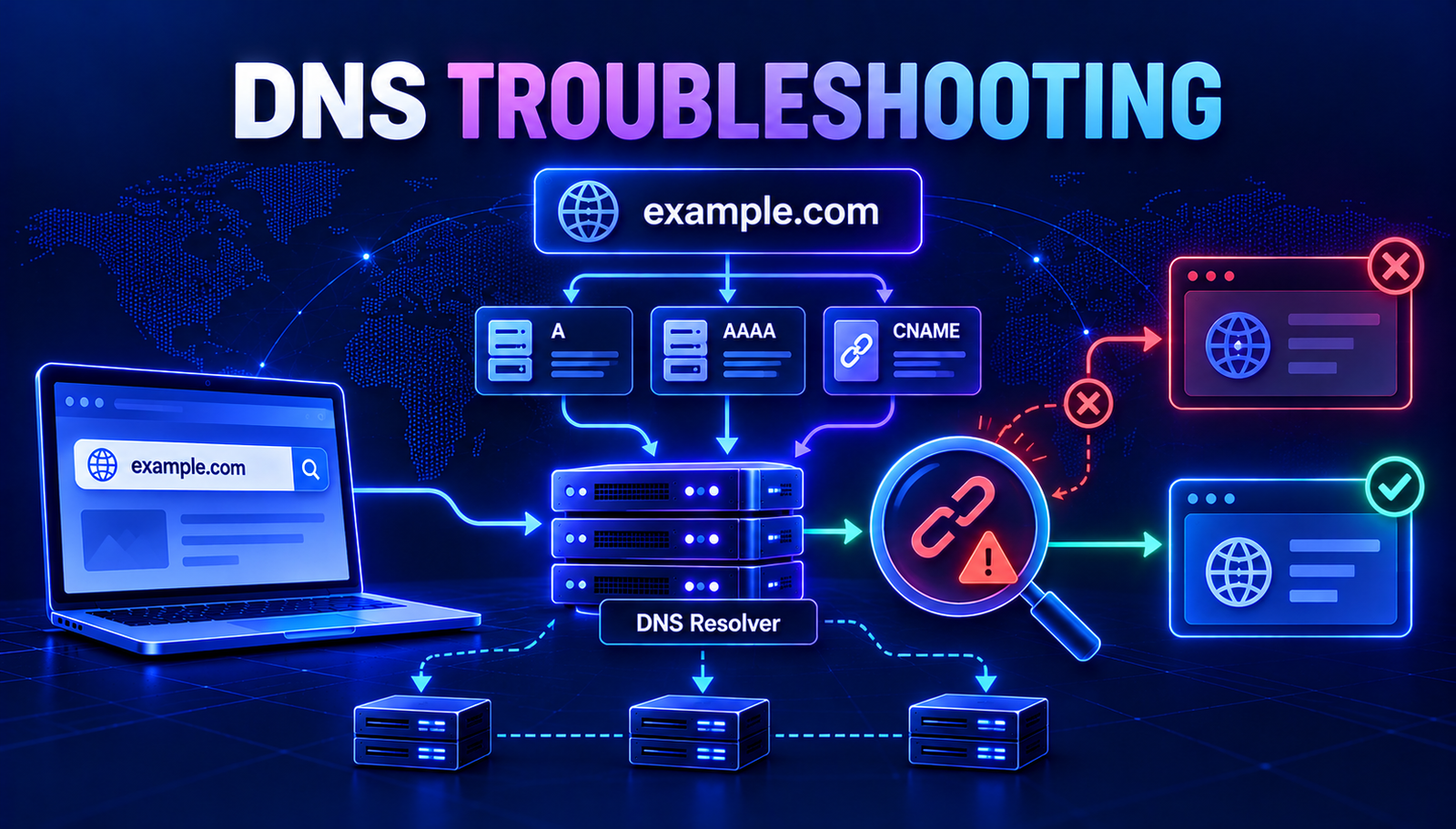
The Domain Name System (DNS) connects readable domain names with information computers use to locate internet services. For example, a DNS A record can point a domain to an IPv4 address, while an AAAA record can point it to an IPv6 address.
If a record is missing, incorrect, outdated, or not available through a DNS resolver, visitors may experience connection problems. However, not every website error is caused by DNS. Hosting failures, expired domains, firewall rules, and incorrect server settings can cause similar symptoms.
Common DNS Problems and Their Symptoms
1. DNS Server Not Responding
This error means your device did not receive a usable response from the DNS resolver it tried to contact. Possible causes include a temporary network issue, an unavailable resolver, router problems, or incorrect DNS settings.
What to check:
- Open another website to see whether the problem affects multiple domains.
- Restart your browser and reconnect to your network.
- Check whether other devices on the same network have the same problem.
- Try a trusted alternative DNS resolver if you understand how to restore your previous settings.
If only one domain fails, investigate that domain's DNS records before changing your device settings.
2. DNS_PROBE_FINISHED_NXDOMAIN
This browser error usually means the DNS lookup returned a result indicating that the requested domain name does not exist. It may appear if a domain was typed incorrectly, a domain has expired, or its DNS configuration is not working as expected.
How to troubleshoot it:
- Check the spelling of the domain name.
- Confirm that the domain is registered and has not expired.
- Check whether the required DNS records exist.
- If DNS settings were recently changed, allow time for cached results to expire.
- Compare results from more than one DNS resolver.
Do not assume that every NXDOMAIN error is caused by DNS propagation. The domain may be incorrect, unregistered, or configured improperly.
3. A Website Opens on One Device but Not Another
If the same website works on your phone but not on your computer, the devices may be using different DNS resolvers or cached answers. Browser settings, VPN software, security applications, and local network configuration can also affect the result.
Try these steps:
- Compare the devices using the same network.
- Temporarily test with a different browser.
- Check whether a VPN or proxy is enabled.
- Flush the local DNS cache if you are comfortable using system commands.
- Compare DNS answers using a DNS lookup tool.
If the problem follows a particular network rather than a device, investigate the router or DNS resolver used by that network.
4. A Domain Points to the Wrong IP Address
A website may open the wrong server if its DNS records contain an incorrect IP address. This can happen after a hosting migration, a DNS configuration change, or an accidental edit in the domain control panel.
Check the domain's A and AAAA records. Confirm that the addresses match the values provided by your hosting provider. If you use a content delivery network, follow that provider's instructions because the expected public DNS answer may differ from the origin server's IP address.
Also check the CNAME record if the domain or subdomain is configured as an alias of another hostname.
Important: Do not copy an IP address from an unrelated website or change records without confirming the correct values with your hosting or DNS provider.
5. DNS Changes Have Not Taken Effect
After you update DNS records, different resolvers may continue returning previously cached answers until the relevant cache entries expire. This is commonly described as DNS propagation.
The waiting period depends on factors such as the previous record's TTL, resolver caching, and the type of change. A DNS change does not always become visible everywhere at the same moment.
What you can do:
- Verify the record in your DNS provider's control panel.
- Check the record's TTL and the previous value if known.
- Query more than one public DNS resolver.
- Confirm that you edited the authoritative DNS provider for the domain.
- Avoid repeatedly changing the record while waiting, as this can make troubleshooting harder.
How to Troubleshoot DNS Problems Step by Step
Step 1: Confirm the Scope of the Problem
First, determine whether the issue affects one website, several websites, one device, or an entire network.
- One domain fails: Check the domain's records, registration status, and hosting service.
- Many websites fail: Check your network connection and DNS resolver.
- Only one device fails: Investigate its DNS cache, network settings, browser, or VPN.
- The website resolves but will not load: Investigate the web server, HTTPS certificate, firewall, and hosting configuration.
Step 2: Check the Domain's DNS Records
Use a DNS lookup tool to inspect the records published for the domain. Depending on your setup, you may need to check A, AAAA, CNAME, MX, TXT, NS, or other record types.
Open the AuraTools DNS Lookup tool and enter the domain you want to investigate. Review the available answers and compare them with the expected configuration from your DNS provider.
A missing record is not automatically an error. For example, a domain used only for a website may not need an MX record unless it is also configured to receive email.
Step 3: Compare DNS Resolvers
Different resolvers can temporarily return different answers because of caching or because they are receiving different information from the DNS hierarchy.
On systems with the dig command installed, you can query two public resolvers:
dig example.com A @1.1.1.1
dig example.com A @8.8.8.8
dig example.com NS @1.1.1.1
Replace example.com with the domain you are checking. These commands query A and NS records through the specified resolvers. They are examples for diagnosis, not proof that either answer is authoritative.
If the answers differ, investigate caching, delegation, and the authoritative DNS configuration. For a more complete comparison, query the domain's authoritative nameservers as well.
Step 4: Check Nameserver Configuration
Your domain registrar specifies which nameservers are responsible for the domain's DNS zone. If the registrar's nameserver settings do not match the DNS provider where you edited the records, your changes may not be published through the active zone.
Use the AuraTools Domain WHOIS tool to inspect available domain registration information, and use DNS lookup results to check the published NS records. WHOIS data availability varies by registry and privacy settings, so it may not reveal every configuration detail.
If the nameservers appear incorrect, confirm the intended nameservers with your DNS provider before making changes.
Step 5: Clear the Local DNS Cache
Your operating system may retain DNS answers for a period of time. Clearing its DNS cache can help when a device continues using an outdated result.
On Windows, open Command Prompt and run:
ipconfig /flushdns
On macOS, the cache-clearing command depends on the operating system version. Use the appropriate Apple documentation or restart the device if you are unsure which command applies.
Clearing your local cache does not change DNS records at your provider and does not clear caches held by every internet resolver. If the problem is caused by an incorrect authoritative record, flushing your computer's cache will not fix it.
Read More: Related DNS Guides
Understanding the related DNS concepts can make troubleshooting much easier. Continue with these guides from AuraTools:
- DNS Lookup: How to Check DNS Records for Any Domain — learn how to inspect DNS answers.
- DNS Propagation Explained — understand why DNS changes may take time to appear.
- DNS Cache Explained — learn how cached DNS answers affect browsing.
- NS Record Explained — understand nameservers and DNS delegation.
Useful DNS Commands for Further Diagnosis
If you are comfortable with command-line tools, the following commands can help narrow down the cause of a problem.
Check an IPv4 Address
dig example.com A
This requests the domain's A record from the default resolver.
Check an IPv6 Address
dig example.com AAAA
This requests the AAAA record. An empty answer does not necessarily indicate a fault because not every domain publishes an IPv6 address.
Check Mail Routing
dig example.com MX
This checks the domain's mail exchanger records. If email delivery is failing, also review the mail provider's configuration and relevant SPF, DKIM, and DMARC records.
Check the HTTP Response
DNS can resolve correctly while a web server still returns an error. Use the AuraTools HTTP Status Code Checker to investigate the HTTP response when the server is reachable. An HTTP status checker cannot diagnose every DNS failure because the hostname must first be reachable through the tool's own network and resolver.
When DNS Is Not the Real Problem
DNS is only one part of loading a website. If the domain resolves to the expected address but the site still fails, check other possible causes.
- Server outage: The hosting server may be unavailable.
- HTTPS certificate issue: The domain may resolve correctly while its TLS certificate is expired or misconfigured.
- Firewall restrictions: A firewall may block traffic even when DNS works.
- Incorrect web server configuration: The server may not be configured to serve the requested domain.
- Domain or hosting suspension: Registration or hosting problems can prevent the site from working.
To separate these possibilities, confirm DNS resolution first and then check the HTTP response, HTTPS certificate, hosting status, and server configuration.
Common DNS Troubleshooting Mistakes
- Changing every DNS record at once: Make one verified change at a time so you can identify its effect.
- Assuming every issue is propagation: Incorrect records, missing delegation, and server failures need different fixes.
- Changing nameservers without preparation: Confirm that the destination DNS zone contains the records your domain needs before switching.
- Deleting unfamiliar records: Records may support email, verification, security, or third-party services.
- Expecting DNS tools to verify a whole website: DNS lookup checks DNS answers, not every part of the hosting stack.
Frequently Asked Questions
How do I know if a problem is caused by DNS?
Check whether the domain resolves to the expected address and compare results across devices or resolvers. If DNS resolution fails, investigate the domain, its records, and the resolver. If DNS works but the site does not load, check the server and HTTPS configuration.
Can I fix DNS problems without technical knowledge?
Many basic checks are straightforward. Confirm the domain spelling, test another website, restart your connection, and inspect DNS records using an online lookup tool. Changes to nameservers or important records should be made carefully and only after confirming the correct settings.
Why does my website work on mobile data but not on Wi-Fi?
The two connections may use different DNS resolvers, cached answers, routing, or security filters. Compare the DNS results and check your router and network settings before changing the domain's records.
How long should I wait after changing DNS records?
There is no single waiting time for every DNS change. The previous TTL, resolver caches, and DNS configuration all affect when new answers appear. Check the authoritative records and compare multiple resolvers rather than relying only on elapsed time.
Does flushing DNS fix every DNS problem?
No. Flushing the local cache can remove outdated answers stored on your device. It cannot correct a wrong DNS record, repair nameserver delegation, restore an unavailable resolver, or fix a broken web server.
Which AuraTools tool should I use first?
Start with the AuraTools DNS Lookup tool to inspect the domain's available DNS records. If the problem appears related to domain registration, review the available information with the Domain WHOIS tool. If DNS resolves but the website returns an HTTP error, use the HTTP Status Code Checker as another diagnostic step.
Conclusion
DNS troubleshooting starts with identifying where the failure occurs. Check whether the problem affects one domain or an entire network, verify the relevant DNS records, compare resolver answers, and confirm nameserver settings. Clear the local cache only when it is relevant to the symptoms.
If DNS resolves correctly but the website still fails, investigate the hosting server, HTTPS certificate, firewall, and web server configuration. A systematic approach helps you avoid unnecessary DNS changes and makes the actual cause easier to identify.
Use AuraTools DNS Lookup to start checking DNS records for your domain.
Contact
Missing something?
Feel free to request missing tools or give some feedback using our contact form.
Contact Us