05
DNS Propagation Explained: How Long Does DNS Take to Update
Learn what DNS propagation means, why DNS changes take time to appear, how TTL and caching affect updates, and how to check whether a DNS record has updated.
You changed a DNS record but your website, email, or domain still does not work as expected. You check the DNS settings and the new value is there. Yet another device or DNS checker still shows the old value.
This is commonly described as DNS propagation.
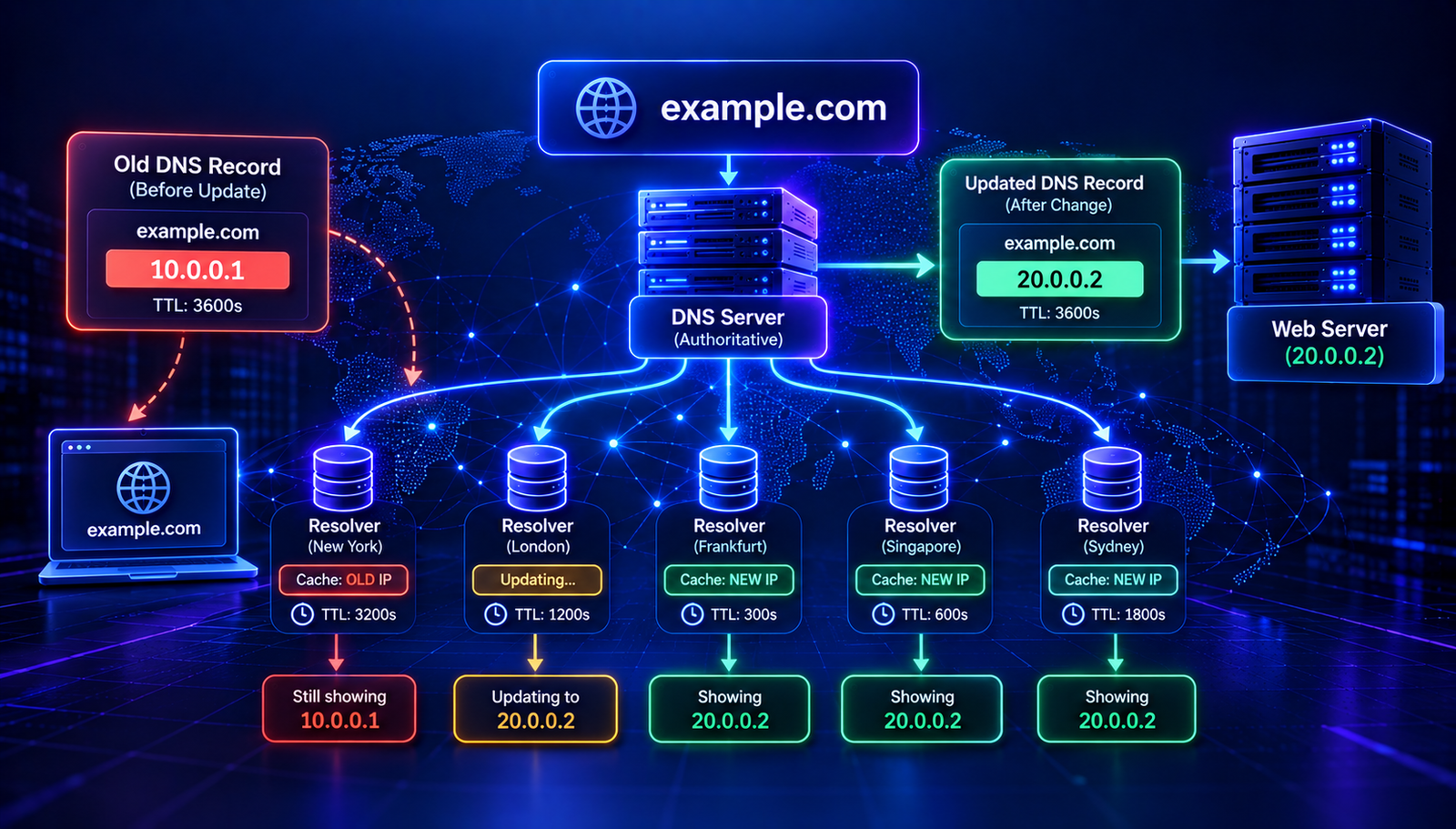
DNS changes do not always appear everywhere at the same time. DNS resolvers can temporarily keep previously retrieved records in their cache. The time required for an updated record to become visible depends on factors such as TTL, caching behavior, resolver policies, and the type of DNS change.
In this guide, you will learn what DNS propagation means, how long DNS changes can take, what TTL has to do with it, and how to check whether your DNS update is working.
What Is DNS Propagation?
DNS propagation describes the process of an updated DNS record becoming visible through different DNS resolvers and networks.
When you change an A, AAAA, CNAME, MX, TXT, or other DNS record, the authoritative DNS server can begin serving the new value. However, recursive DNS resolvers may still have an older response stored in their cache.
Until that cached information expires, some users may receive the old DNS answer while others receive the new one.
This is why a DNS change can appear to work from one network but not another.
How DNS Changes Reach Users
A simplified DNS lookup can look like this:
Your device
     ↓
DNS resolver
     ↓
Authoritative DNS server
     ↓
DNS response
     ↓
Your device
If the resolver already has a valid cached answer, it may return that answer without immediately asking the authoritative server again.
When the cached record expires, the resolver can request a fresh answer. The new DNS value can then be returned to users of that resolver.
How Long Does DNS Propagation Take?
There is no single fixed propagation time for every DNS change.
Some DNS updates become visible very quickly. Others can take longer depending on the previous record's TTL and how DNS resolvers handle caching.
A common mistake is to assume that every DNS change automatically takes exactly 24 to 48 hours. That is not a universal rule.
The practical time can depend on:
- The TTL of the previous DNS record.
- Whether a resolver has the old value cached.
- The DNS provider and authoritative nameserver configuration.
- The resolver's caching behavior.
- The type of DNS change being made.
- Whether you changed a record or changed the authoritative nameservers themselves.
What Is DNS TTL?
TTL stands for Time to Live. It tells DNS resolvers how long a DNS response can be cached before it should be considered expired.
For example, imagine an A record has a TTL of 3600 seconds.
3600 seconds = 1 hour
A resolver that retrieved the record may keep the response in its cache for the permitted period. When that cached data expires, the resolver can retrieve fresh information.
TTL is therefore an important factor when you are waiting for a DNS record change to become visible.
Does Lowering TTL Make DNS Changes Instant?
No.
Lowering TTL can reduce how long new cached responses are retained after they are retrieved, but it does not instantly remove DNS data that is already cached.
For example, if an old record was previously cached with a long TTL, changing the TTL in the authoritative DNS zone does not necessarily cause every resolver that already cached the old answer to immediately forget it.
This is especially important when planning a major DNS migration.
Read More: Related DNS Guides
- DNS Lookup: How to Check DNS Records — learn how to inspect DNS records for a domain.
- NS Record Explained — understand how nameservers control DNS delegation.
- PTR Record Explained — learn how reverse DNS maps an IP address to a hostname.
DNS Propagation vs DNS Caching
People often use the term DNS propagation to describe any delay after changing DNS. DNS caching is one of the main reasons these differences occur.
Consider this example:
- Your authoritative DNS server publishes a new IP address.
- Resolver A requests the record and receives the new address.
- Resolver B already has the old address cached.
- Users connected through Resolver A see the new address.
- Users connected through Resolver B may continue seeing the old address until its cached data expires.
The authoritative DNS data may already be correct even though some users still receive an older cached response.
Which DNS Changes Can Take Time?
Propagation and caching can affect many types of DNS records.
A Records
An A record maps a hostname to an IPv4 address. If you move a website to a new server and change its A record, some users may temporarily continue reaching the old server.
AAAA Records
An AAAA record maps a hostname to an IPv6 address. Changes to an AAAA record can similarly take time to appear through different resolvers.
CNAME Records
A CNAME record points one hostname to another hostname. Cached CNAME responses and related DNS data can affect when users see the new destination.
MX Records
MX records control which mail servers receive email for a domain. When changing email providers, DNS caching can cause some sending systems to continue using the previous mail server temporarily.
TXT Records
TXT records are commonly used for SPF, domain verification, and other configuration data. A recently added TXT record may not immediately appear from every DNS resolver.
NS Records
Changing nameservers can involve additional DNS delegation and caching considerations. Nameserver changes should therefore be planned carefully before switching DNS providers.
How to Check if DNS Has Propagated
You do not have to simply wait and guess. You can perform DNS lookups from different resolvers and networks.
Method 1: Use AuraTools DNS Lookup
You can use the AuraTools DNS Lookup to inspect the current DNS information for a domain.
Check the specific record that you changed. For example, if you changed an A record, look at the current A result. If you changed a TXT record, check the TXT result.
Remember that a DNS lookup shows what the selected resolver can currently retrieve. It does not mean every DNS resolver worldwide has exactly the same cached state.
Method 2: Use dig
You can query DNS from a command line with dig.
dig example.com A
For a TXT record:
dig example.com TXT
For an MX record:
dig example.com MX
Replace example.com with your domain.
Method 3: Query a Specific Resolver
One useful troubleshooting technique is to query different DNS resolvers.
For example, with dig you can specify a resolver:
dig @1.1.1.1 example.com A
Another resolver can be queried separately:
dig @8.8.8.8 example.com A
Different results can indicate differences in resolver cache state, DNS configuration, or the path used to obtain the answer.
Why Is My DNS Change Not Working?
If a DNS update still does not appear, do not automatically assume that propagation is the problem.
Several other issues can cause a DNS change to fail.
1. The record was added to the wrong DNS provider
Your domain may use nameservers from a different provider than the dashboard where you edited the DNS record.
Always check which authoritative nameservers are actually delegated for your domain.
2. The record name is incorrect
A DNS dashboard may expect @, a hostname such as www, or a full domain name depending on its interface.
An incorrect host value can publish a record at the wrong location.
3. Another record is conflicting
Some DNS record combinations are not valid together. For example, a hostname cannot normally have a CNAME and other data records at the same owner name.
Review the complete DNS configuration instead of looking at only the record you changed.
4. The authoritative DNS servers are not serving the expected record
If the authoritative servers themselves return the old value, waiting for propagation will not solve the problem.
Check the authoritative response directly and verify the DNS provider configuration.
5. Local DNS caching is involved
Your operating system, browser, router, or local network may have cached DNS information.
Testing from another network can help determine whether the issue is local or more widespread.
How to Troubleshoot DNS Propagation
Use a structured process instead of repeatedly refreshing the same DNS checker.
- Confirm the change. Check the DNS dashboard where you made the update.
- Identify the authoritative nameservers. Make sure you are editing the DNS zone that is actually authoritative for the domain.
- Query the authoritative server. Check whether it already returns the new value.
- Query public resolvers. Compare results from multiple resolvers.
- Check the TTL. Look at the remaining cache time when available.
- Test from another network. This can help separate local caching from broader DNS behavior.
- Check the exact record type. An A record change does not change an AAAA record or CNAME automatically.
DNS Propagation During a Website Migration
DNS propagation is especially important when moving a website from one hosting provider to another.
A common migration looks like this:
Old server
   ↓
DNS A record
   ↓
New server
If the A record is changed to the new server's IP address, users whose resolvers still have the old address cached may continue reaching the old server.
For this reason, website migrations should be planned before the final DNS change. Make sure the new server is ready before updating the record.
Keep the old server available during an appropriate transition period when possible. This can reduce disruption for users and systems that still have cached DNS information.
DNS Propagation During an Email Migration
Changing email providers requires extra care because MX records determine where receiving systems deliver email.
If you change your MX records, some sending systems may continue using the previous MX information until their cached DNS data expires.
Before changing MX records:
- Make sure the new mail system is ready.
- Verify the new MX records.
- Configure SPF for the new sending infrastructure.
- Configure DKIM where supported.
- Review your DMARC configuration.
- Keep the previous mail service available during the transition when appropriate.
DNS propagation is only one part of an email migration. Authentication and mailbox configuration also need to be checked.
Does Flushing DNS Speed Up Propagation?
Flushing the local DNS cache can help when your own computer has an outdated cached response. However, it does not clear cached DNS data from public resolvers around the internet.
Therefore, flushing your computer's DNS cache may fix a local issue but does not force global DNS caches to update.
Common DNS Propagation Myths
Myth 1: Every DNS change takes 24 to 48 hours
There is no universal 24-to-48-hour rule. The time depends on DNS caching, TTL, resolver behavior, and the type of change.
Myth 2: Changing the TTL instantly clears old caches
Changing the authoritative TTL does not necessarily remove data that has already been cached elsewhere.
Myth 3: If one DNS checker shows the new value, everyone sees it
Different resolvers can have different cached responses. One successful lookup does not prove that every network has updated.
Myth 4: Waiting always fixes DNS problems
If the authoritative DNS configuration is incorrect, waiting will not solve the underlying problem.
DNS Propagation Best Practices
- Check your authoritative DNS configuration before assuming propagation is the issue.
- Understand the TTL of records before making important changes.
- Plan website and email migrations in advance.
- Verify DNS records from multiple resolvers.
- Test from more than one network when troubleshooting.
- Keep old infrastructure available during important migrations when practical.
- Do not repeatedly change DNS records while troubleshooting without understanding the cause.
- Use DNS lookup tools to compare current results.
Frequently Asked Questions
How long does DNS propagation usually take?
There is no fixed universal time. Some changes can become visible quickly while cached responses may remain available until their TTL expires. Nameserver changes can involve additional delegation and caching considerations.
Why does my website work on one device but not another?
The devices may be using different DNS resolvers or cached responses. One resolver may already have the new DNS information while another still has an older cached value.
Does DNS propagation affect HTTPS?
DNS determines where a hostname resolves, while HTTPS certificates are handled separately. However, after changing DNS, users may temporarily reach different servers. The server they reach must have the appropriate TLS certificate and configuration.
Can I speed up DNS propagation?
You cannot force every external resolver to immediately discard cached information. Planning changes with suitable TTLs can make future migrations easier, but already cached responses still have to expire according to their applicable caching rules.
How can I tell if my DNS has updated?
Check the authoritative DNS response and compare results from multiple DNS resolvers. A DNS lookup tool can help you inspect the currently visible record.
Does changing DNS affect everyone at the same time?
No. Different resolvers can update their cached information at different times. This can create a temporary period where different users receive different DNS responses.
Conclusion
DNS propagation is the term commonly used for the period during which DNS changes become visible through different resolvers and networks. DNS caching and TTL values are important reasons why users may temporarily see different results.
When a DNS change does not appear to work, first check the authoritative DNS servers. Then compare results from multiple resolvers and verify the exact record you changed. This helps distinguish normal caching from an actual DNS configuration problem.
For quick DNS checks, use the AuraTools DNS Lookup to inspect the records currently returned for your domain.
Contact
Missing something?
Feel free to request missing tools or give some feedback using our contact form.
Contact Us