25
SSL Certificate Checker: Check Validity and Expiry
Learn how to check an SSL certificate, verify its expiry date, understand HTTPS errors, troubleshoot certificate warnings, and keep your website secure.
Introduction
A website can appear online and still have an HTTPS configuration problem. Its certificate might be expired, issued for a different hostname, or incorrectly installed on the server. In these situations, visitors may see browser security warnings instead of the expected website.
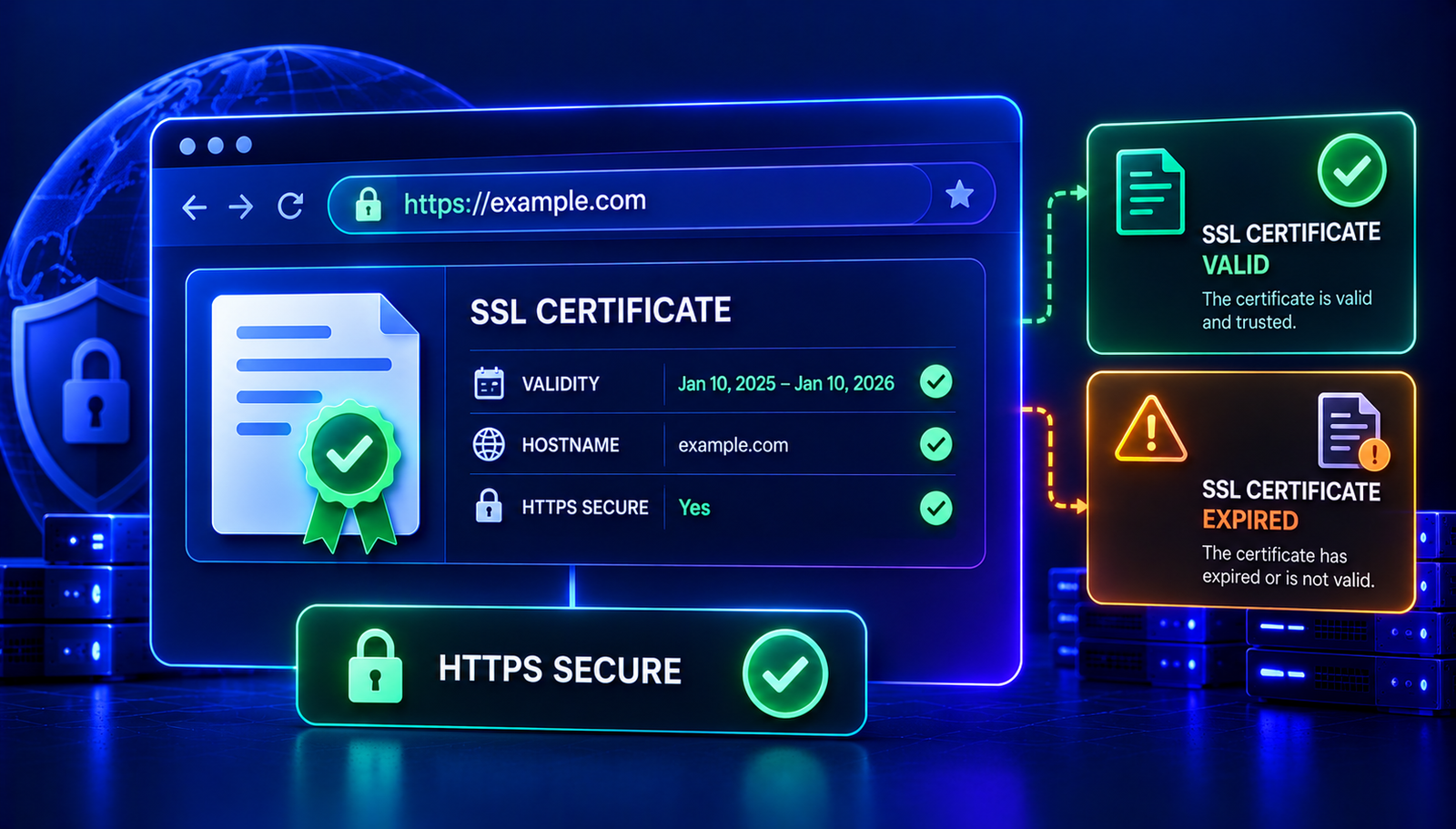
An SSL certificate checker helps website owners inspect a site's TLS certificate and identify potential certificate-related problems. Although SSL remains the familiar term, modern HTTPS connections use Transport Layer Security (TLS).
Checking a certificate is useful when launching a website, changing hosting providers, renewing a certificate, or investigating browser warnings. However, a valid certificate alone does not guarantee that a website is completely secure.
In this guide, you'll learn how to check an SSL certificate, understand its validity dates, recognize common certificate errors, and troubleshoot HTTPS problems step by step.
What Is an SSL Certificate Checker?
An SSL certificate checker is a tool that examines a website's TLS certificate and reports information about its HTTPS configuration.
Depending on the tool, the results may include:
- Certificate issuer
- Certificate validity period
- Expiry date
- Subject and covered hostnames
- Certificate chain information
- Certificate-related warnings
The information available depends on the tool and the certificate configuration it can inspect.
For example, a certificate may be valid for www.example.com but not for example.com. A checker can help you identify this mismatch before you change DNS records or server settings.
You can start with the AuraTools SSL Checker to inspect a website's certificate.
Remember that a certificate check is a diagnostic step, not a complete security audit. It does not automatically establish whether an application's code, database, authentication system, or server permissions are secure.
How to Check an SSL Certificate Online
If you want to inspect a website's certificate, follow this workflow.
Step 1: Open the SSL Checker
Visit the AuraTools SSL Checker.
Enter the website hostname you want to inspect, following the tool's input instructions.
For example:
example.com
Use a domain you own or are authorized to test when investigating configuration problems.
Step 2: Run the Certificate Check
Start the check and review the information returned by the tool.
Depending on the available results, look for the certificate's issuer, validity dates, covered hostname, and any reported errors.
If the tool does not provide a particular field, do not assume that the field is valid or invalid. Use another appropriate diagnostic method to investigate it.
Step 3: Check the Hostname
The certificate must be valid for the hostname visitors are accessing.
Consider these addresses:
- example.com
- www.example.com
- shop.example.com
They are different hostnames. A certificate may cover one, several, or all of them, depending on its names and configuration.
Check the exact hostname that is experiencing the problem rather than testing only the site's homepage or a different subdomain.
Step 4: Review the Validity Dates
Check the certificate's start and expiry dates.
If a certificate has expired, the server may need a renewal or a corrected certificate deployment. If it is not yet valid, investigate the certificate's validity period and the system's clock where relevant.
A certificate's validity dates are only one part of the check. The hostname and certificate chain must also be considered.
Step 5: Investigate Any Warnings
If the checker reports a problem, identify the exact error before making changes.
For example, an expired certificate, hostname mismatch, and incomplete certificate chain require different fixes.
Avoid reinstalling certificates or changing DNS settings without understanding which component is failing.
How to Read SSL Certificate Details
Certificate information can look technical, but a few fields are particularly useful.
Certificate fieldWhat it meansWhat to check
Issuer | The certificate authority or issuer identified in the certificate | Whether the certificate is expected and trusted by the relevant client
Valid from | The beginning of the certificate's validity period | Whether the certificate is currently within its validity dates
Valid until | The end of the certificate's validity period | Whether renewal or replacement is needed
Subject | The identity information associated with the certificate | Whether it matches the intended deployment
Subject Alternative Name (SAN) | The hostnames or other identities covered by the certificate | Whether the hostname being visited is included
Public key | The public key associated with the certificate | Whether the certificate is correctly deployed and meets current requirements
Certificate chain | The certificates used to establish a path to a trusted authority | Whether required intermediate certificates are supplied correctly
Not every checker displays every field. Some checks also depend on how the server presents the certificate chain during the connection.
Common SSL Certificate Errors and How to Fix Them
1. SSL Certificate Expired
An expired certificate has passed the end of its validity period.
Visitors may see a browser warning because the certificate is no longer valid for establishing the expected trusted HTTPS connection.
Possible causes:
- Automatic renewal failed.
- The certificate was not renewed in time.
- The renewed certificate was not installed correctly.
- The server is presenting an older certificate.
How to investigate:
- Check the certificate's expiry date.
- Identify which certificate the server is presenting.
- Review the hosting provider's certificate-management settings.
- Check renewal logs or the certificate authority's instructions.
- Renew or replace the certificate as appropriate.
- Verify the certificate served by the website after deployment.
If your hosting provider manages certificates automatically, confirm that automatic issuance and renewal are enabled and functioning.
Do not assume that requesting a new certificate means the server is already using it.
2. Certificate Name Mismatch
A hostname mismatch occurs when the certificate does not cover the hostname being visited.
For example, a certificate issued only for www.example.com may not be valid for shop.example.com.
How to troubleshoot it:
- Identify the exact hostname shown in the browser.
- Inspect the certificate's Subject Alternative Name entries.
- Check which certificate the server presents for that hostname.
- Obtain or configure a certificate that covers the required hostname.
- Test the affected hostname again.
If both the root domain and www subdomain are used, confirm that both are covered where required.
Do not assume that adding a DNS record automatically adds that hostname to an existing certificate.
3. Certificate Authority Not Trusted
A browser may reject a certificate if it cannot establish a trusted certification path.
Possible reasons include a self-signed certificate, an untrusted issuer, or a certificate chain that is not configured correctly.
What to check:
- Whether the certificate was issued by an appropriate certificate authority.
- Whether the server supplies the required intermediate certificates.
- Whether the certificate is intended for the hostname being visited.
- Whether the problem occurs only on a particular device or network.
For a public website, installing a certificate from an appropriate trusted certificate authority is usually preferable to relying on a self-signed certificate.
Do not instruct visitors to ignore certificate warnings as a routine solution.
4. Incomplete Certificate Chain
A certificate chain connects the website's certificate to a trusted root through the relevant intermediate certificates.
If the server does not provide the required intermediate certificate, some clients may fail to build the expected trust path.
How to investigate:
- Inspect the certificate chain using an appropriate TLS diagnostic tool.
- Review your hosting provider's certificate installation instructions.
- Confirm that the correct certificate bundle is installed.
- Reload or restart the relevant service if required by the hosting environment.
- Test the website from more than one client when appropriate.
The exact installation process depends on your server, hosting panel, and certificate provider.
5. HTTPS Works on One Hostname but Not Another
A website might work over HTTPS on its main hostname while a subdomain displays a certificate warning.
For example, the main domain may be configured correctly while a staging site or shop subdomain uses a different certificate.
Possible causes include:
- The subdomain is not covered by the certificate.
- The subdomain points to a different server.
- The server uses a different virtual-host configuration.
- A reverse proxy or CDN terminates HTTPS separately.
Check each hostname individually. Do not assume that a working certificate on one hostname automatically applies to all subdomains.
6. Mixed Content Warnings
Mixed content occurs when an HTTPS page requests certain resources over insecure HTTP.
For example, a secure webpage may load an image or script using an http:// URL.
The browser may block some resources or display warnings depending on the resource type and browser behavior.
How to investigate:
- Open the browser's developer tools.
- Select the Console or Network tab.
- Reload the affected page.
- Identify resources loaded over HTTP.
- Update legitimate resource URLs to use HTTPS where supported.
- Verify that the resources load correctly after the change.
Mixed content is different from an expired certificate. Renewing the certificate alone does not fix insecure resource URLs.
What Is the Difference Between SSL and TLS?
SSL stands for Secure Sockets Layer, an older protocol family that has been superseded by TLS, or Transport Layer Security.
People still commonly use phrases such as "SSL certificate" and "SSL checker." In modern website administration, these terms generally refer to certificates used for HTTPS connections secured with TLS.
A certificate helps authenticate the server's identity and supports establishing a secure connection. The security of the connection also depends on protocol negotiation, certificate validation, cryptographic settings, and correct implementation.
Therefore, a valid certificate should not be treated as proof that every part of a website's security configuration is correct.
How Often Should You Check an SSL Certificate?
There is no single checking schedule that fits every website. A sensible approach depends on the certificate's validity period, renewal method, hosting setup, and importance of the service.
Consider these situations:
- Before a website launch: Confirm that the required hostnames have working HTTPS.
- After changing hosting providers: Verify that the new server presents the intended certificate.
- After changing DNS or CDN settings: Check the hostnames affected by the change.
- After certificate renewal: Confirm that the server presents the renewed certificate.
- When visitors report browser warnings: Inspect the exact hostname and certificate details.
- During routine maintenance: Review expiry dates and renewal status.
For important websites, automated expiry monitoring can provide earlier warning than manually checking the certificate only when a problem occurs.
If your hosting provider offers automatic renewal, verify that renewal failures are reported and that the renewed certificate is actually deployed.
SSL Certificate vs. HTTPS: What's the Difference?
The terms are related, but they do not mean the same thing.
TermMeaning
SSL certificate | The commonly used name for a certificate used with HTTPS, generally relying on modern TLS
TLS | The protocol family used to secure the connection
HTTPS | HTTP carried over a secure TLS connection
Certificate validity | Whether the certificate satisfies relevant validity and identity checks
HTTPS redirect | A rule that sends visitors from HTTP to HTTPS
Mixed content | An HTTPS page requesting certain resources over insecure HTTP
A website may have a certificate installed but still have redirect problems, mixed content, or other configuration issues.
For a more complete diagnosis, inspect the certificate and test the site's redirect behavior separately.
You can use the AuraTools Redirect Checker to investigate the redirect path. The AuraTools HTTP Status Code Checker can help you examine HTTP response status codes.
These checks answer different questions: certificate validity, redirect behavior, and HTTP response status are related but distinct parts of website troubleshooting.
SSL Certificate Troubleshooting Checklist
If your website displays an HTTPS warning, use this checklist before changing configuration.
- Confirm the exact hostname showing the warning.
- Inspect the certificate's validity dates.
- Verify that the certificate covers the hostname.
- Check whether the server presents the expected certificate.
- Investigate certificate-chain errors if reported.
- Check hosting or certificate-management logs.
- Inspect HTTPS redirects when relevant.
- Check the browser console for mixed content.
- Verify that any renewed certificate is actually deployed.
- Test the affected hostname again after the fix.
Change only the settings related to the identified problem. Broad, unnecessary changes can create new issues while making the original cause harder to diagnose.
Frequently Asked Questions
How can I check whether an SSL certificate is valid?
Use an SSL certificate checker to inspect the certificate's validity dates, covered hostname, issuer, and any reported errors. A valid result should be interpreted in context because certificate validity alone does not establish that the entire website is secure.
Can I check an SSL certificate for free?
You can use online certificate-inspection tools to examine publicly accessible websites. The information available depends on the tool and its supported checks.
What happens when an SSL certificate expires?
Browsers may display a security warning and prevent visitors from proceeding normally. Website owners should renew or replace the certificate and verify that the correct certificate is deployed.
Does an SSL certificate protect a website from hackers?
No. A certificate helps authenticate a website and supports an encrypted connection, but it does not prevent every application vulnerability, account compromise, malware infection, or server misconfiguration.
Why does my website work on HTTP but show an HTTPS error?
The HTTP and HTTPS endpoints may use different server configurations. The HTTPS endpoint might present an expired certificate, a certificate for the wrong hostname, or an incomplete certificate chain.
Investigate the certificate and HTTPS server configuration before changing DNS records or disabling security checks.
Is a free SSL certificate sufficient for a business website?
A certificate does not need to be paid solely to be useful. The appropriate choice depends on the website's requirements, the certificate's coverage, its validation type, and the support or management features required.
Regardless of cost, it must be correctly issued, deployed, renewed, and trusted by the intended clients.
Conclusion
Checking an SSL certificate is an important part of maintaining a reliable HTTPS website. It helps you investigate expiry dates, hostname mismatches, certificate-chain problems, and other certificate-related warnings.
The best troubleshooting process starts with the exact hostname and error, followed by a targeted certificate check and verification of the final fix.
Start with the AuraTools SSL Checker. If the issue involves redirects or HTTP responses, continue with the relevant AuraTools diagnostic tool rather than assuming every HTTPS problem has the same cause.
Contact
Missing something?
Feel free to request missing tools or give some feedback using our contact form.
Contact Us